
Import contacts
You can add people one by one or import a whole list at once. Every person goes into a group. If you don’t have a group yet, PeopleWisher asks you to create one first.
What each person needs
Section titled “What each person needs”- A name: a first name or a last name.
- A celebration date: month and day. The year is optional. Add it if you’d like their age to appear on greetings and graphics.
- At least one way to reach them: email, phone (for SMS) or WhatsApp number. For a child, or anyone without their own phone or email, you can add a guardian instead.
Import from a spreadsheet (CSV or Excel)
Section titled “Import from a spreadsheet (CSV or Excel)”-
In the People column, click + and choose Import Contact. You can also click Import people on the dashboard checklist.
-
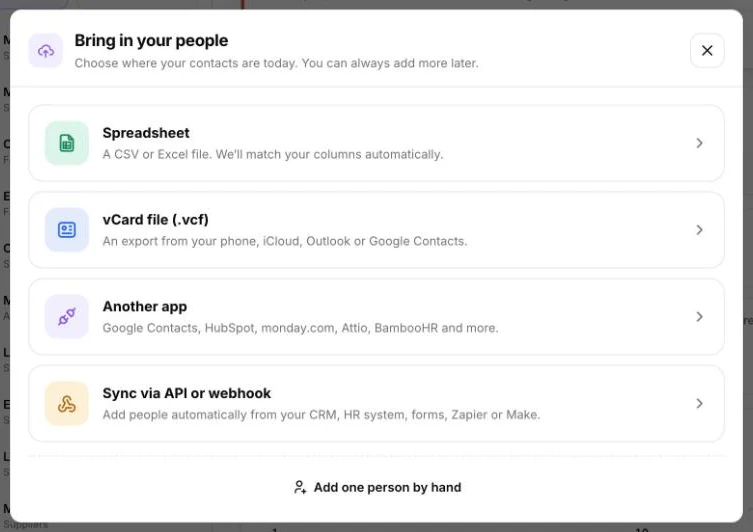
Choose Spreadsheet.
-
Under Add them to, choose the group these people should join.
-
Drag your file onto Drag your CSV or Excel file here, or click to browse. Files can be up to 10 MB (.csv, .xlsx or .xls).
-
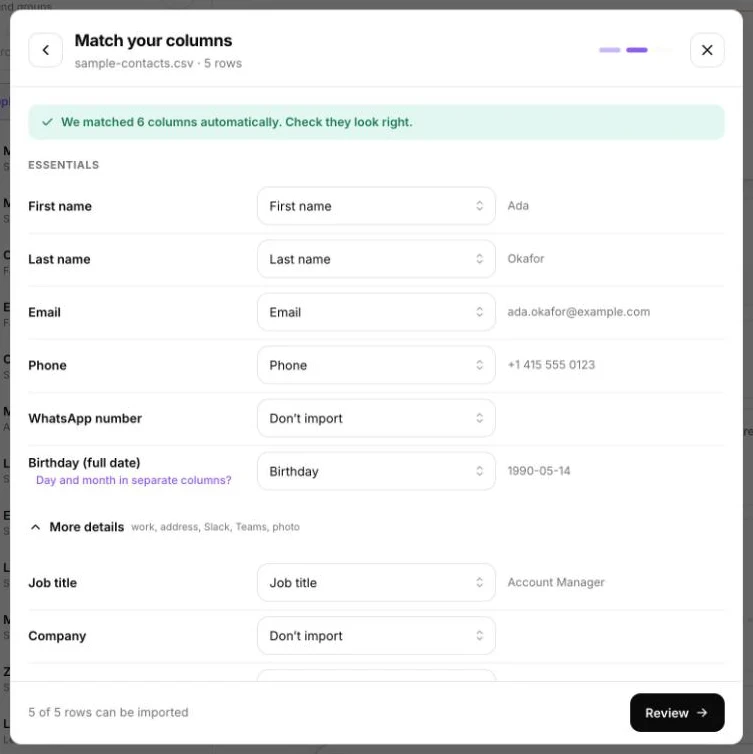
On Match your columns, check that each column in your file is matched to the right field. PeopleWisher matches most columns automatically.
- If the day and month of birthdays are in separate columns, click Day and month in separate columns?
- Extra fields such as job title, company and address are under More details.
-
On Review and import, check the numbers, then click Import {N} people.
PeopleWisher adds your people in the background. It usually takes under a minute, and you’ll get an email when it’s done.
Need a template?
Section titled “Need a template?”Click Download a sample spreadsheet on the upload step. It has these columns:
First name, Last name, Email, Phone, WhatsApp number, Birthday, Job title, Company, Street address, City, ZIP / postal code, Country, Slack username, Microsoft Teams username, Photo URL.
Birthday formats that work
Section titled “Birthday formats that work”PeopleWisher understands most date formats, including:
1990-05-1414/05/1990or05/1414 May 1990orMay 14- Excel date cells
When a date could be read either way (for example 04/05), PeopleWisher looks at the whole column to work out whether the day or month comes first.
Which rows are skipped
Section titled “Which rows are skipped”- Rows with no birthday, no valid email and no phone number. These show as skipped: no birthday, email or phone.
- People already in the group with the same email or phone and the same birthday, so you won’t get duplicates if you import a file twice.
Import from your phone or Google Contacts (vCard)
Section titled “Import from your phone or Google Contacts (vCard)”- Export your contacts as a vCard (.vcf) file. On iPhone/iCloud, Outlook and most phones there’s an export or share option.
- For Google Contacts:
- Open contacts.google.com.
- Select the people you want (or none, to export everyone) and click Export.
- Choose vCard and click Export.
- In PeopleWisher, choose Import Contact → vCard file (.vcf) and upload the file.
Google Contacts imports are a one-time copy. People you add to Google later won’t appear in PeopleWisher automatically.
Import from another app
Section titled “Import from another app”Choose Another app to bring people in from tools such as HubSpot, monday.com, Attio or BambooHR. You can also manage these connections from Apps & Integrations in the left menu.
Add one person by hand
Section titled “Add one person by hand”- In the People column, click + → New Contacts. On a group’s page you can also use Add Contact(s) → Add Contact.
- Fill in the First name, choose a Group, and add the birthday Month and Day.
- Under How to reach them, add an email, phone or WhatsApp number. Leave WhatsApp empty to use their phone number.
- Optional: add a photo (JPG, PNG or WEBP, up to 5 MB). Photos are used on celebration graphics.
- Click Add contact.
Let people add themselves
Section titled “Let people add themselves”On a group’s page, choose Add Contact(s) → Create Form Link. You get a form you can share, for example “Add your birthday!”, and anyone who fills it in joins the group.
Find people with missing details
Section titled “Find people with missing details”Use the filter in the People column to list people with No Phone, No Email, no Birthday or No WhatsApp, so you can fill the gaps before their day.
Troubleshooting
Section titled “Troubleshooting”- “Create a group first, then import people into it.”: you need at least one group. See Groups explained.
- “Choose the column with each person’s name.”: on the match step, pick the column that holds names.
- Contact limit reached: your plan allows a set number of contacts. New contacts above the limit won’t receive greetings until you upgrade.