
Delete contacts and groups
Delete a contact
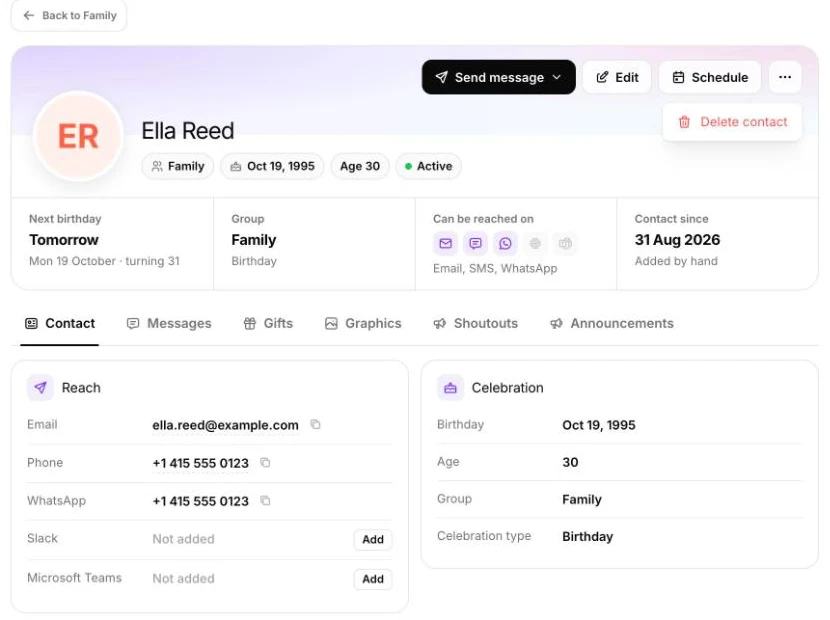
Section titled “Delete a contact”- Open the person’s page (click their name in the People column).
- Click More actions (the three dots) and choose Delete contact.
- Read the confirmation: “This will permanently remove {name} from PeopleWisher, along with their message history, graphics and tags.”
- Click Delete contact.
You’ll see Contact deleted successfully and return to their group.
Delete several contacts at once
Section titled “Delete several contacts at once”Contacts are deleted one at a time. If you need to remove a large number of people, for example after an import into the wrong group, you can:
- Delete the whole group (below) and import the right people again, or
- Contact support and tell us which people to remove.
Delete a group
Section titled “Delete a group”Deleting a group also deletes everyone in it and all of its settings.
-
Open the group and click the Group Schedule tab, then Default Scheduler.
-
Click the ⋯ (More options) button at the top and choose Delete group.

-
Read the confirmation: “Are you sure you want to delete {group}? This will remove all contacts and settings. This action cannot be undone.”
-
Click Delete group.
You’ll see Group deleted successfully.
Delete other things
Section titled “Delete other things”| What | Where | Notes |
|---|---|---|
| Message template | Template → the template’s Delete button | Check no group still uses it. |
| Graphic preset | Graphics Design → the trash icon on the preset | |
| A generated graphic | Graphics Design → My Graphics Gallery | Deleting a graphic queues a new one to be made. |
| Files and photos | Asset Library | Tick several files to delete them together. |
| Campaign | Open the campaign → Delete | People in it leave the campaign. Sent-message history is kept. |
Delete your account
Section titled “Delete your account”There’s no self-service account deletion. Email hello@peoplewisher.com from your account’s email address and we’ll delete your account and data.