
Connect email
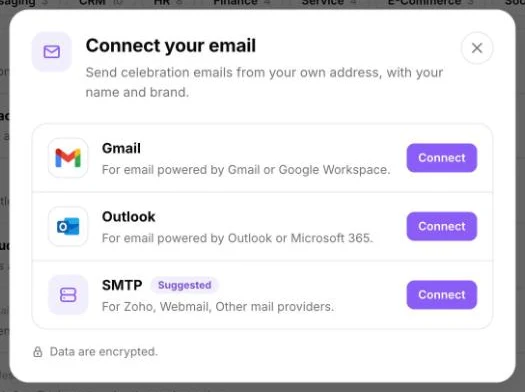
Birthday emails look more personal when they come from your own address. PeopleWisher can send from:
- Gmail or Google Workspace
- Outlook or Microsoft 365
- Your own domain (SMTP): for Zoho, webmail and other mail providers
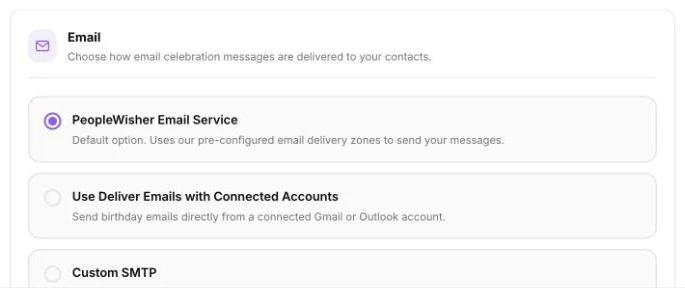
- PeopleWisher Email Service: our built-in sender, used if you don’t connect anything
Connect Gmail or Outlook
Section titled “Connect Gmail or Outlook”- On the dashboard checklist, click Connect next to Connect your email. You can also go to Apps & Integrations → Email → Connect.
- In Connect your email, click Connect next to Gmail or Outlook.
- Sign in in the window that opens and allow PeopleWisher to send email for you.
- When you see Your email is connected, you’re done. It’s now your default sender for every email PeopleWisher sends.
Connect your own domain (SMTP)
Section titled “Connect your own domain (SMTP)”- In Connect your email, choose the SMTP option.
- Fill in SMTP server, Port (465 for SSL or 587 for TLS), Username, Password and Send from. Your email provider gives you these details. Some providers need an app password rather than your normal password.
- Optional: add a Sender name.
- Click Test & save. PeopleWisher sends a test email. If it arrives, this becomes your sender. If not, nothing changes and we tell you why.
Not sure where to find your SMTP details? Click Where do I find my SMTP details? in the same window.
Change how email is sent
Section titled “Change how email is sent”Go to Settings → Deliverability → Email and choose one of these:
- PeopleWisher Email Service
- Use Deliver Emails with Connected Accounts, then pick the account under Connected email account
- Custom SMTP
Then click Save changes.
Connecting a new account replaces your current sender.
Set the sender name and reply-to address
Section titled “Set the sender name and reply-to address”Each email template has its own From (sender name), for example “John from Acme”, and a Reply-to email. Set them when you create or edit an email template under Template.
Birthday and celebration emails from your group schedules are included in your plan.
Troubleshooting
Section titled “Troubleshooting”- “Selected Gmail account is no longer connected”: your Gmail or Outlook connection has expired or been removed. Open Connect your email and click Reconnect.
- Emails going to spam: connect your own domain or account rather than the shared service, and avoid messages that are only an image.
- See also Why didn’t a greeting send?