
Your first birthday greeting in 10 minutes
This guide gets you from a new account to automatic birthday greetings. You’ll need a list of people with their birthdays and at least an email address or phone number for each one.
When you first sign in, the dashboard shows a Let’s get your celebrations started checklist. Follow it from top to bottom. Each step disappears once it’s done, and the next one is highlighted. The steps below match that checklist.
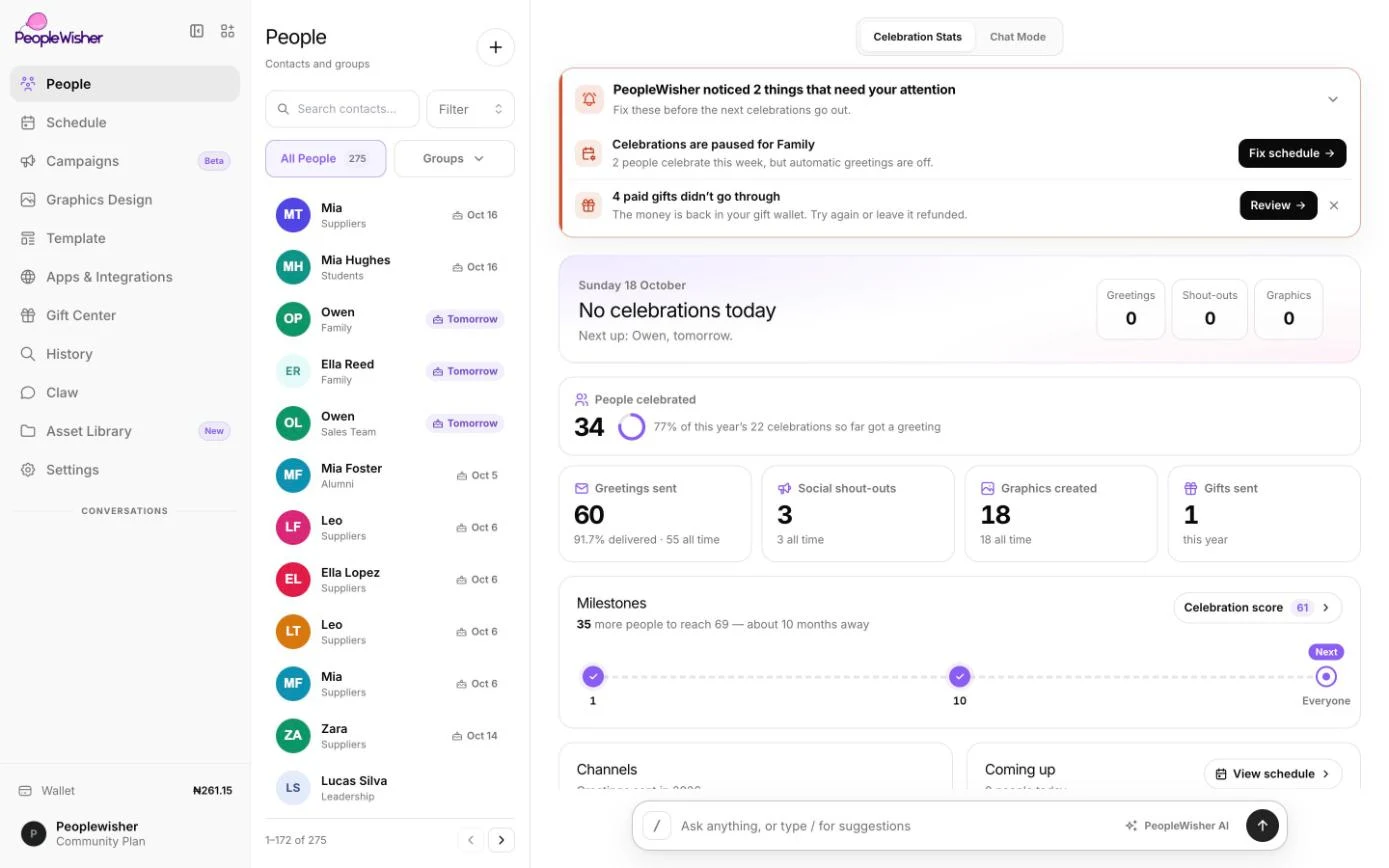
Step 1: Bring in your people
Section titled “Step 1: Bring in your people”- On the checklist, click Import people next to Bring in your people.
- Choose where your contacts are today: a Spreadsheet (CSV or Excel), a vCard file (.vcf) from your phone or Google Contacts, or Another app.
- Under Add them to, pick the group these people belong to. You already have a starter group, but you can create a new one.
- Upload the file, check the column matches, then click Import {N} people.
Only have a few people? Click Add one person by hand instead. For details, see Import contacts.
Step 2: Connect at least one channel
Section titled “Step 2: Connect at least one channel”A channel is how the greeting reaches people. Pick one to start with. You can add more later.
- Email: click Connect next to Connect your email to send from your own Gmail, Outlook or domain. See Connect email.
- WhatsApp: click Connect next to Connect a WhatsApp number. See Connect WhatsApp.
- SMS: click Set up next to Set up SMS to choose a sender ID. See SMS sender ID.
Step 3: Turn on celebrations for your group
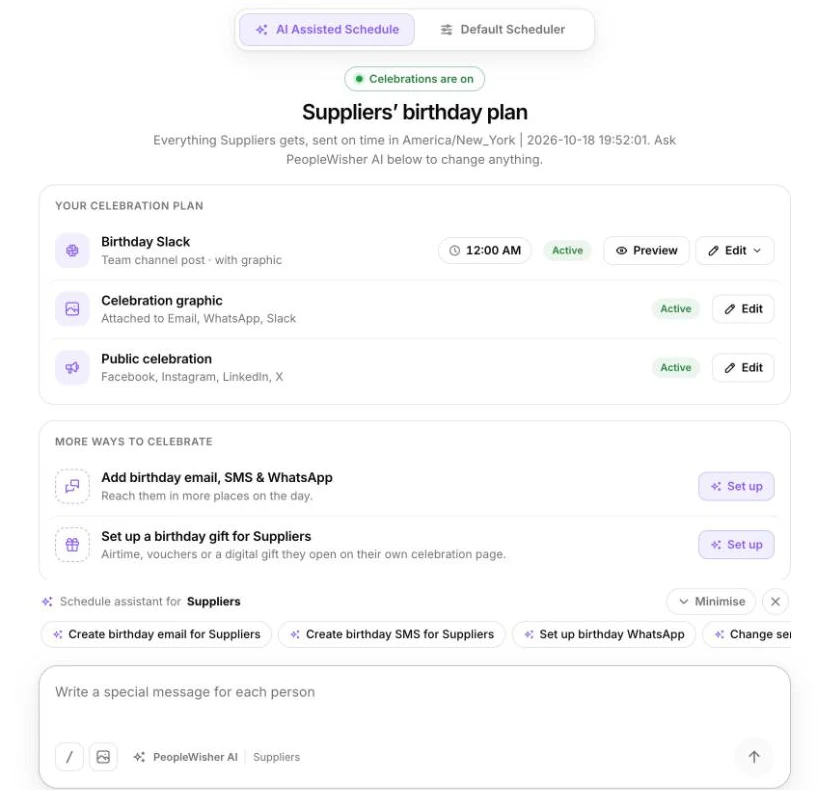
Section titled “Step 3: Turn on celebrations for your group”- On the checklist, click Set up next to Turn on celebrations for {your group}. This opens the group’s Group Schedule tab.
- Choose AI Assisted Schedule to describe what you want in plain words, or Default Scheduler to set it up yourself.
- For each channel you want to use, pick a message template and a Send Message at time.
- In the Default Scheduler, click Save settings. In the AI Assisted Schedule, click Apply on the assistant’s proposal.
- If you see Celebrations are paused for this group, click Turn on. Your plan should now show Celebrations are on.
For a full walkthrough, see Set up a group schedule.
Step 4: Check what’s coming up
Section titled “Step 4: Check what’s coming up”Open Schedule in the left menu to see every upcoming celebration, day by day. Click a person to preview the exact message they’ll receive.
After a greeting goes out, you’ll find it under History.
Before the big day
Section titled “Before the big day”- Make sure your wallet has enough credit for SMS, WhatsApp or other paid messages.
- Look out for the things need your attention card on the dashboard. It warns you about missing phone numbers, paused groups and channels that aren’t ready.