
Celebration graphics
Celebration graphics are images made for each person: their photo, name and age on a design you choose. You create a design once (a preset) and PeopleWisher makes a personal version for everyone in the group.
Graphics are available on paid plans.
Step 1: Create a preset
Section titled “Step 1: Create a preset”- Click Graphics Design in the left menu.
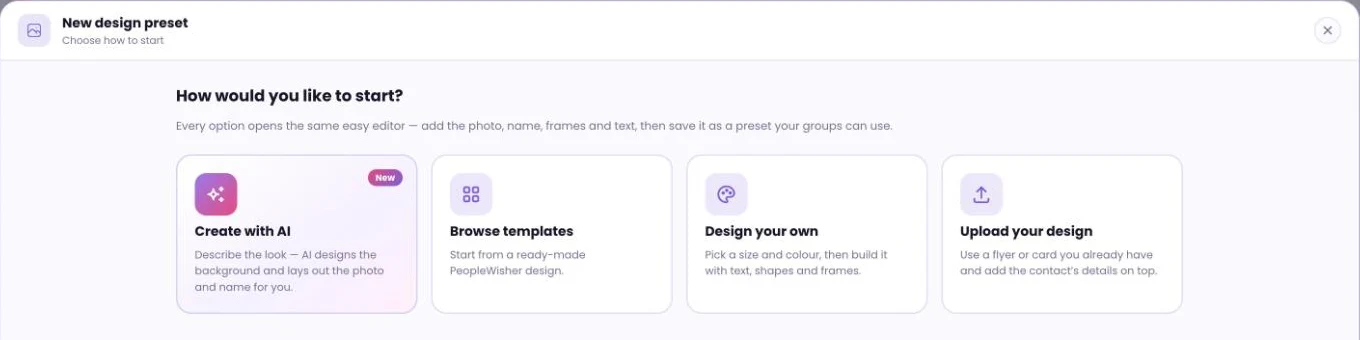
- Choose how to start:
- Create with AI: describe the look and AI designs the background. Pick a layout: Photo in the middle, Photo on the side or No photo.
- Browse templates: start from a ready-made PeopleWisher design.
- Design your own: build it in the editor.
- Upload your design: use your own PNG or JPG (up to 10 MB). Leave space for the photo and name.
- Save the preset.
Step 2: Turn on graphics for a group
Section titled “Step 2: Turn on graphics for a group”- Open the group, go to Group Schedule → Default Scheduler → Graphics tab.
- Switch on Create Graphics Automatically.
- Choose your preset under Choose a preset.
- Click Save settings.
Graphics are made ahead of each celebration and sent to you to review. Nothing goes out without your sign-off.
Step 3: Attach graphics to your greetings
Section titled “Step 3: Attach graphics to your greetings”On the Greetings tab, tick Attach Graphics on each channel that should include the image:
- Email: the graphic is attached to the email.
- WhatsApp: the graphic is sent as the image at the top of your approved WhatsApp template. Your template needs an image header. See Connect WhatsApp.
- Slack and Microsoft Teams: the graphic is posted with the message.
- Social shoutouts: the graphic is used in the post. Instagram needs one. See Social shoutouts.
Add photos
Section titled “Add photos”Graphics with a photo layout need a photo of each person. Upload one when you add the person, or on their page under the Graphics tab (JPG, PNG or WEBP). The dashboard reminds you with Add a photo of {name} for their birthday graphic.
Review graphics
Section titled “Review graphics”Open Graphics Design → My Graphics Gallery to review graphics made for your people. If one doesn’t look right, you can flag it to be made again, or delete it and queue a new one.
On a person’s page you can also Make another, re-crop their photo, Download the image, or choose Use for greetings.
Check a person’s graphic on the Schedule page
Section titled “Check a person’s graphic on the Schedule page”| You see | What to do |
|---|---|
| No photo of {name} yet | Upload a photo of the person. |
| No design chosen | Click Choose a design and pick a preset. |
| No graphic will be made | Click Turn on graphics for the group. |
| A graphic will be made before their day | Nothing. It’s on its way. |
| Ready for {name}’s day | All set. |