
Set up a group schedule (AI-assisted or manual)
A group’s schedule decides what everyone in the group receives on their special day. You can set it up in two ways:
- AI Assisted Schedule: tell PeopleWisher AI what you want in plain words and it sets things up for you. This is the default.
- Default Scheduler: choose every option yourself.
Both change the same schedule, so you can start with AI and fine-tune by hand.
To open it, go to People, open a group, and click the Group Schedule tab.
Option 1: AI Assisted Schedule
Section titled “Option 1: AI Assisted Schedule”- Click AI Assisted Schedule at the top of the tab.
- Under What you can set up, click Set up on a card such as Set up birthday email, SMS & WhatsApp. Or type into Schedule assistant for {group}, for example “Send a warm birthday email at 8am and a short WhatsApp at noon.”
- PeopleWisher AI shows a proposal. Click See message to read it, Edit to change it, then Apply. Nothing is saved until you click Apply.
- Check Your celebration plan. Each row (for example Birthday email) shows the message, the send time and whether it’s Active, Paused or Off.
- If you see Greetings are set up but paused, click Turn on celebrations.
New group with nothing set up yet? You’ll see What you can set up instead. Click Set up on any card to start.
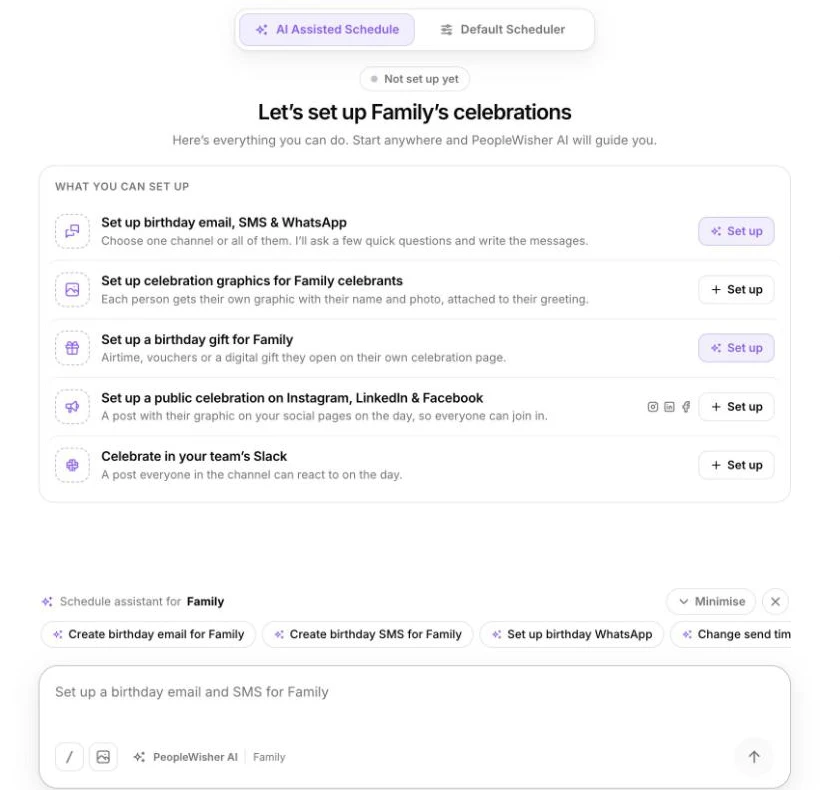
Handy things you can ask the assistant:
- “Rewrite the birthday email”
- “Change send times”
- “Write a special message for each person”
- “Pause celebrations for this group”
Change a send time: click the time on a plan row, choose a new time under Send at, then click Save.
Preview: click Preview on any row to see exactly what a person will receive, including the send time, subject and whether a graphic is attached.
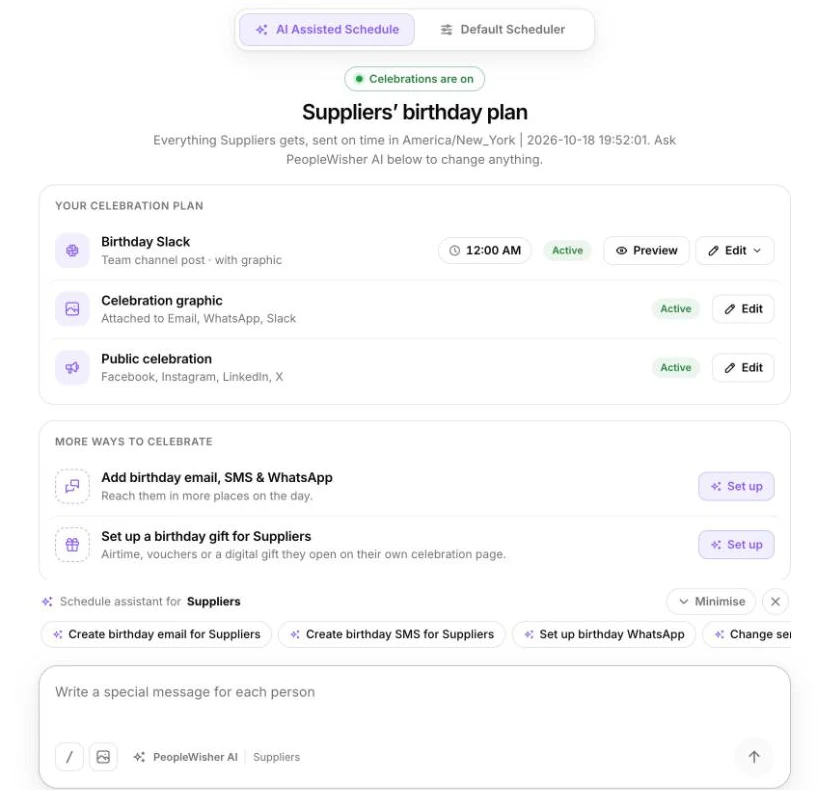
Option 2: Default Scheduler
Section titled “Option 2: Default Scheduler”- Click Default Scheduler at the top of the tab.
- On the Greetings tab, switch on each channel you want: Email, SMS, WhatsApp, Slack or Microsoft Teams.
- For each channel:
- Choose a template under Choose {channel} template, or click Write with AI.
- Set Send Message at.
- For SMS, choose an SMS Sender ID. See SMS sender ID.
- For WhatsApp, choose your WhatsApp Number. See Connect WhatsApp.
- Tick Attach Graphics to include each person’s celebration graphic.
- Optional: use the Graphics, Social Shoutouts and Gifts tabs.
- Click Save settings. The checklist at the top shows Saved — celebrations will go out automatically.
- If you see Celebrations are paused for this group, click Turn on.
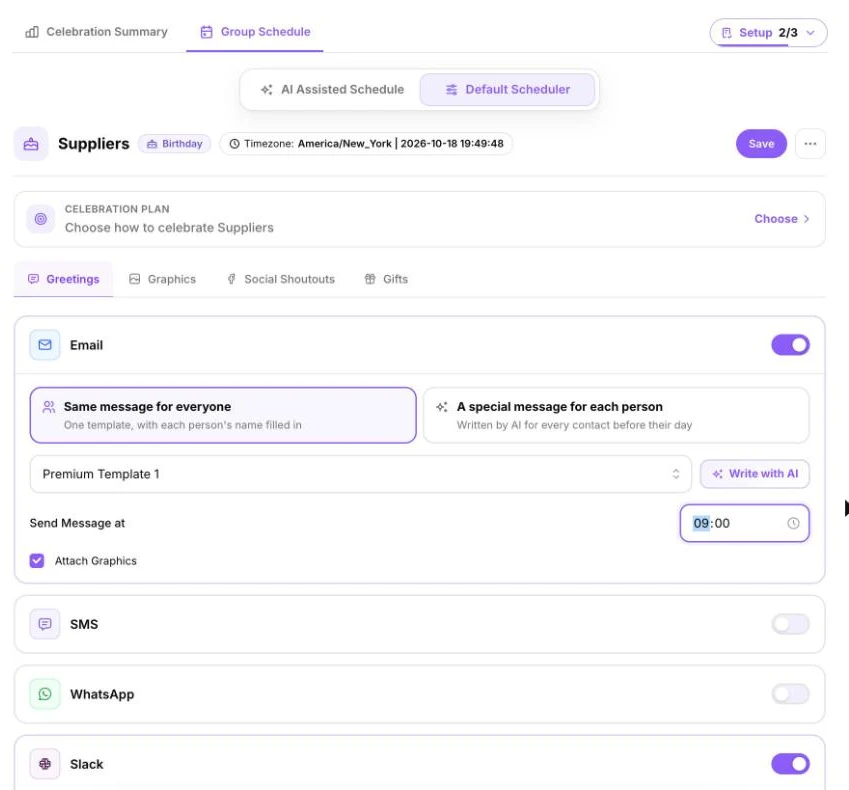
Send times and time zones
Section titled “Send times and time zones”Greetings go out at the time you choose, in your account’s time zone. You can see it in the Timezone chip at the top of the Default Scheduler. To change it, go to Settings → Account info.
Personalise your messages
Section titled “Personalise your messages”Templates can include placeholders that are replaced with each person’s details:
| Placeholder | Becomes |
|---|---|
{firstname} |
The person’s first name |
{lastname} |
Their last name |
{fullname} |
Their full name |
{age} |
Their age, e.g. 30 (needs a birth year) |
{age_ordinal} |
Their age as 30th (needs a birth year) |
{business_name} |
Your business name |
{job_title} |
Their job title |
Example: “Happy birthday, {firstname}! Everyone at {business_name} hopes you have a wonderful day.”
Want a different message for every person? See Special personal messages.
Check it’s working
Section titled “Check it’s working”- The Group Schedule tab no longer shows Not set up yet.
- Schedule in the left menu lists upcoming greetings as Scheduled.
- The dashboard’s needs your attention card doesn’t show problems such as No greeting channel is on or channels aren’t ready.
Common messages
Section titled “Common messages”| Message | What to do |
|---|---|
| Please select an email/SMS/WhatsApp template | Choose a template for every channel you switched on. |
| Please select a send time for {channel} | Set Send Message at for that channel. |
| Please select SMS Sender ID | Choose a sender ID in the SMS card. |
| Please select a WhatsApp number | Connect a WhatsApp number, then choose it in the WhatsApp card. |
| Celebrations are paused for this group | Click Turn on (or Turn on celebrations). |