
Create message templates (email, SMS and WhatsApp)
A template is a reusable greeting. Write it once and use it in any group’s schedule. Each person’s name and details are filled in when it’s sent.
Click Template in the left menu to see all your templates. Use the tabs at the top to show All Templates, Email, SMS or WhatsApp.
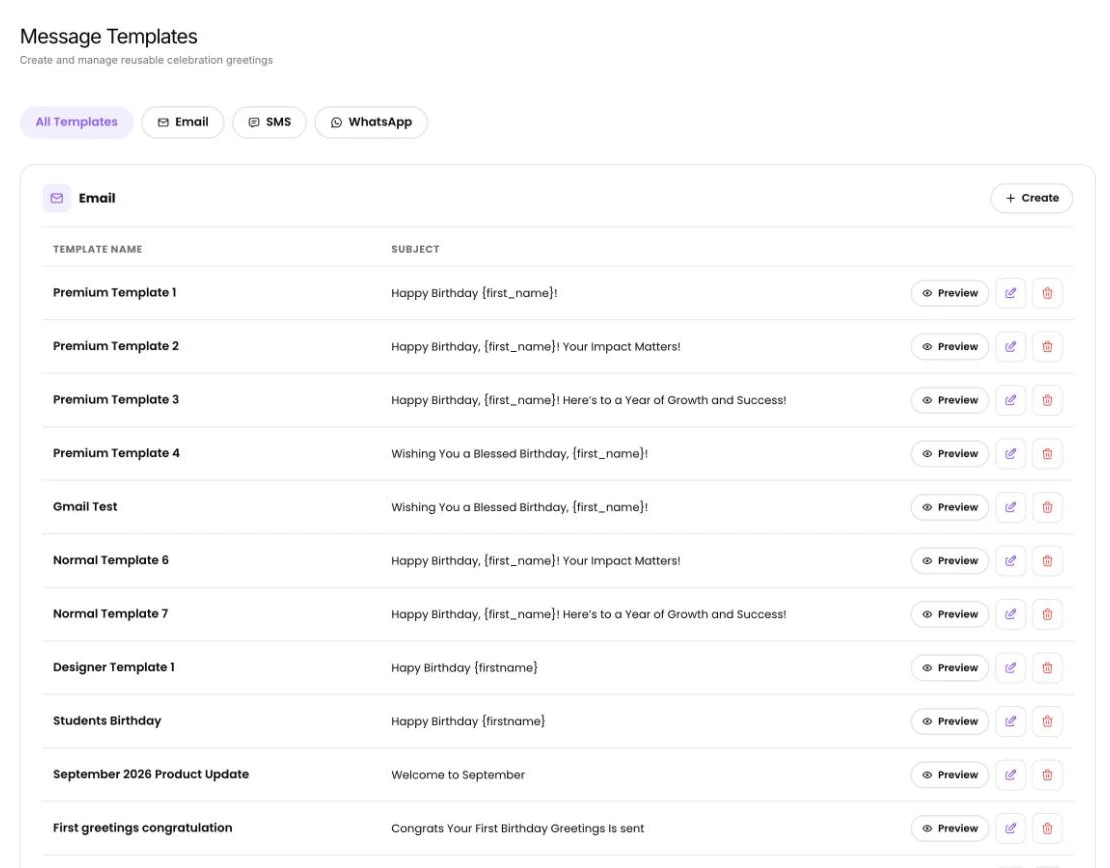
Email templates are available on every plan. SMS and WhatsApp templates are on paid plans.
The quickest way: let AI write it
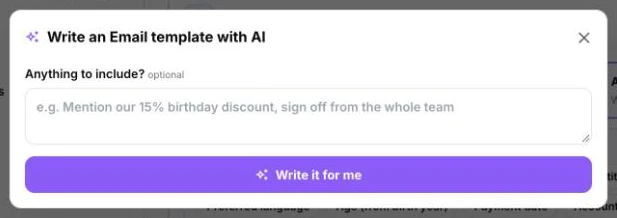
Section titled “The quickest way: let AI write it”You can have PeopleWisher AI write a template while you set up a group’s schedule:
- Open the group’s Group Schedule → Default Scheduler.
- In the Email, SMS or WhatsApp card, click Write with AI.
- Optional: under Anything to include?, add details, for example “Mention our 15% birthday discount, sign off from the whole team”. PeopleWisher already knows your business and the group, so you can leave this empty.
- Click Write it for me.
- Read the draft. You can change the Template name, the Subject and From name (email), the Sender ID (SMS) and the Message. Don’t like it? Click Try another.
- Click Save template & use it. The template is saved and chosen for this group.
For WhatsApp, click Create in Template → instead. Your text is copied, and the Templates page opens so you can paste it into a new WhatsApp template and send it to Meta for approval.
Create an email template
Section titled “Create an email template”- On the Templates page, click Create in the Email section.
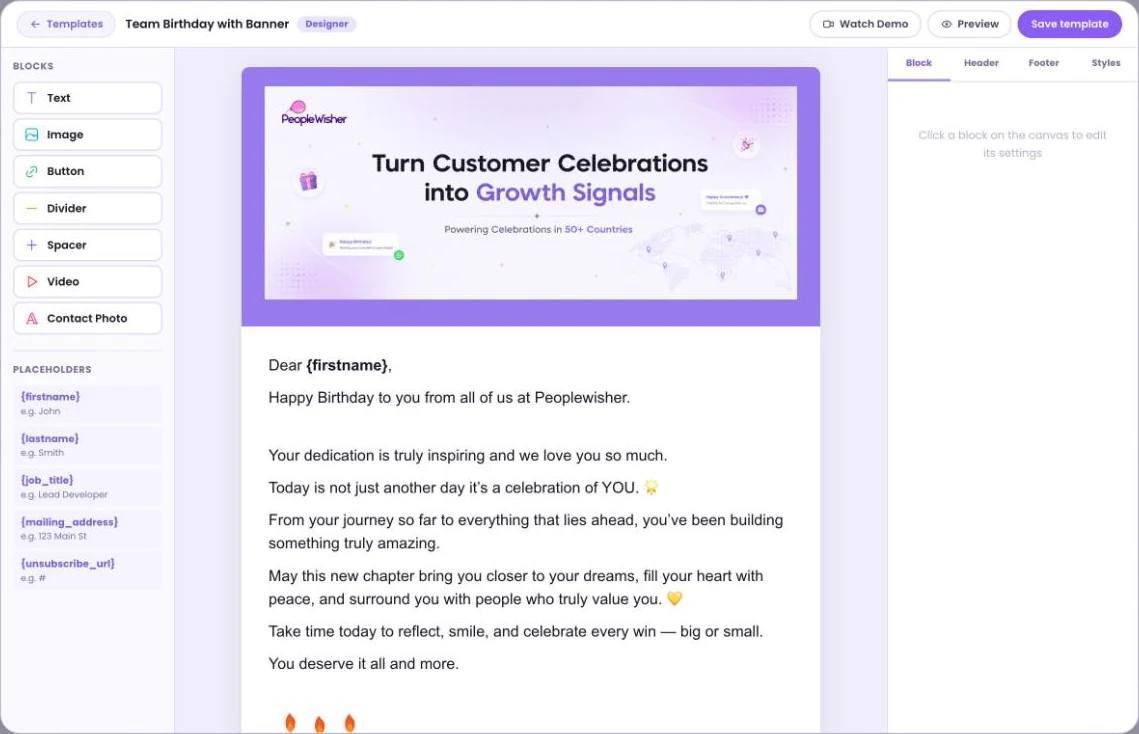
- Choose a starting design under Choose a starting template, for example Team Birthday with Banner, or Start Blank. Click Use this template →.
- Build your email in the Designer:
- Drag Blocks from the left onto the email: Text, Image, Button, Divider, Spacer, Video and Contact Photo (the person’s own photo).
- Click any block to change it on the right. Use the Header tab for your logo and banner, and the Styles tab for fonts and colours.
- In a Text block, use Insert Placeholder to add the person’s name or other details. See Message personalisation.
- Click Preview and switch between Desktop and Mobile to check how it looks.
- Click Save template, then fill in the Template name, From (sender name) (for example “Sarah from Acme”), Reply-to email and Subject line.
- Click Save & Publish →.
Prefer plain text or HTML?
Section titled “Prefer plain text or HTML?”When creating an email template you can switch to Rich Text Editor (a simple text editor) or HTML (paste your own HTML). For ready-made HTML designs, browse the Birthday Template Library.
Create an SMS template
Section titled “Create an SMS template”- On the Templates page, click Create in the SMS section.
- Enter a Template name, for example “Staff Birthday SMS”.
- Write the Message body, for example: “Happy birthday {firstname}! Wishing you a wonderful day from all of us at Acme.”
- Watch the counter below the message:
- GSM-7: up to 160 characters per text.
- Unicode: emojis and some special characters cut this to 70 characters per text and increase the cost.
- Click Save template.
The sender name isn’t part of the template. You choose it in each group’s schedule. See SMS and sender IDs.
Create a WhatsApp template
Section titled “Create a WhatsApp template”WhatsApp templates must be approved by Meta before they can be sent. First connect your WhatsApp number.
- On the Templates page, click Create in the WhatsApp section.
- Enter a Template name and choose your WhatsApp number.
- Leave Language on Auto-detect (recommended), or choose one.
- Optional: click Add image to add an image header (JPG or PNG under 5 MB). You need this if you want to send celebration graphics on WhatsApp.
- Write your message (up to 3,000 characters). You can format text with
*bold*,_italic_and~strikethrough~. - Save. You’ll see WhatsApp template submitted to Meta for approval.
The Status column shows Pending approval until Meta decides. See WhatsApp template pending.
Greetings are sent as WhatsApp Marketing messages. This is set automatically and you don’t need to do anything.
Slack and Microsoft Teams messages
Section titled “Slack and Microsoft Teams messages”Slack and Teams don’t use saved templates. Write the message directly in the Slack or Teams card of the group’s schedule, or click Write with AI there.
Edit, preview or delete a template
Section titled “Edit, preview or delete a template”Each template row has these buttons:
- Preview: see the template. Placeholders show as typed, for example
{firstname}, rather than a real name. - Edit: change it. Editing a WhatsApp template sends it back to Meta for review.
- Delete: remove it for good. You’ll be asked “Are you sure you want to delete…? This action cannot be undone.”
Before deleting, check the template isn’t chosen in a group’s schedule.