
Connect WhatsApp
PeopleWisher sends WhatsApp greetings through the official WhatsApp Business connection from Meta. Messages come from your own business number, and there are no daily message limits on this connection.
WhatsApp is available on paid plans.
Before you start
Section titled “Before you start”You’ll need:
- A Facebook Business (Meta Business) account you can log in to.
- A phone number for WhatsApp. This can be the number you already use in the WhatsApp Business app, or a new one.
Step 1: Connect your number with Meta
Section titled “Step 1: Connect your number with Meta”- Click Connect next to Connect a WhatsApp number on the dashboard checklist. You can also go to Apps & Integrations → WhatsApp → Connect.
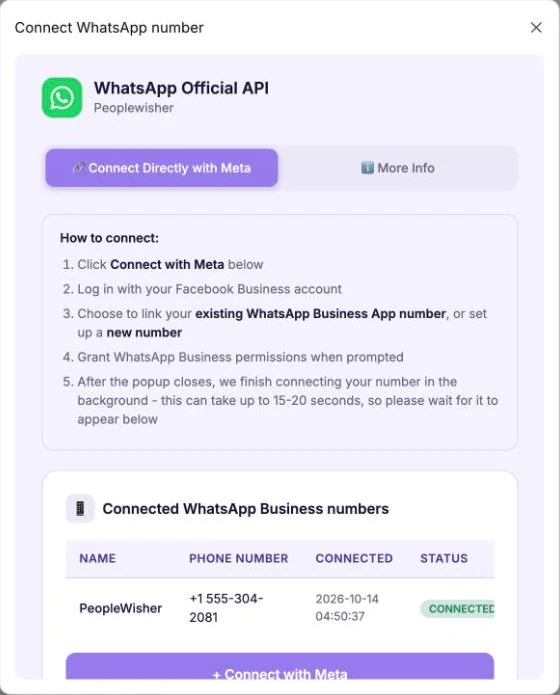
- On the Connect Directly with Meta tab, click + Connect with Meta.
- Log in with your Facebook Business account.
- Choose to link your existing WhatsApp Business app number, or set up a new number.
- Allow the WhatsApp Business permissions when asked.
- After the window closes, wait while you see Connecting your number…. This can take 15–20 seconds.
Your number then appears under Connected WhatsApp Business numbers.
Step 2: Create a WhatsApp template
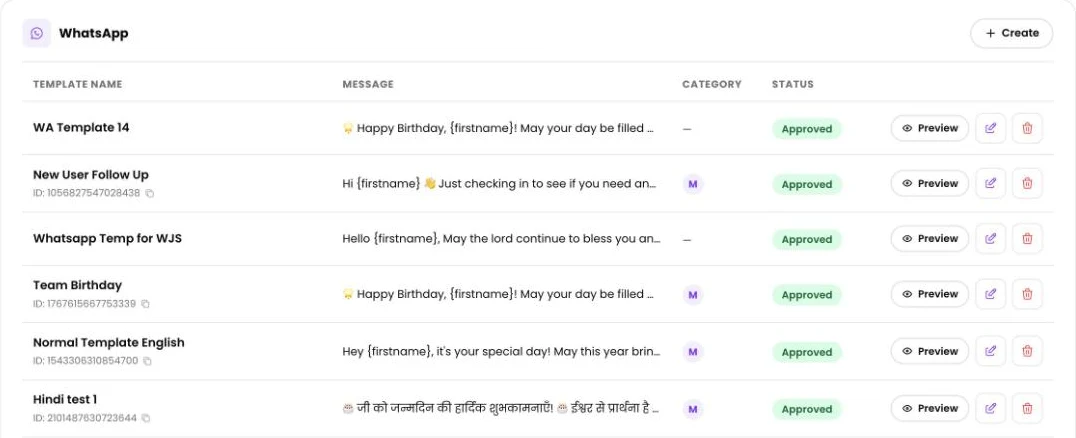
Section titled “Step 2: Create a WhatsApp template”WhatsApp only lets businesses start a conversation with a template that Meta has approved.
- Click Template in the left menu and create a WhatsApp template.
- Write your greeting. You can include placeholders such as
{firstname}. Each person’s details are filled in for them. - To send celebration graphics on WhatsApp, give the template an image header.
- Submit it. You’ll see WhatsApp template submitted to Meta for approval.
Greetings like this are sent as WhatsApp Marketing messages. Keep them warm and personal, and avoid heavy sales language, so Meta approves them quickly.
Step 3: Wait for approval
Section titled “Step 3: Wait for approval”Your template shows one of these statuses:
| Status | Meaning |
|---|---|
| Pending approval | Meta is reviewing it. This usually takes a few minutes, sometimes longer. |
| Approved | Ready to use. |
| Rejected | Meta didn’t approve it. Hover over the status to see why, then edit and resubmit. |
| Paused / Disabled | Meta has limited the template, often because of low-quality feedback. Create a new one. |
See WhatsApp template pending if it’s taking a while.
Step 4: Add WhatsApp to a group schedule
Section titled “Step 4: Add WhatsApp to a group schedule”- Open the group’s Group Schedule → Default Scheduler → WhatsApp.
- Choose your number under WhatsApp Number.
- Choose your approved template and a send time.
- Optional: tick Attach Graphics.
- Click Save settings.
Approved templates are sent exactly as Meta approved them, so special personal messages can’t be used for WhatsApp. Names and details are still personalised.
Billing
Section titled “Billing”On the official connection, you manage WhatsApp message billing directly with Meta through your Meta Business account.
Disconnect a number
Section titled “Disconnect a number”Go to Apps & Integrations → WhatsApp, find the number under Connected WhatsApp Business numbers and click Disconnect.
Troubleshooting
Section titled “Troubleshooting”- “Please select a WhatsApp number”: connect a number first, then choose it in the WhatsApp card.
- “…the WhatsApp Business number it belongs to isn’t connected”: the template belongs to a number that has been disconnected. Reconnect the number or pick a template from your connected number.
- They stopped marketing messages: the person has opted out of business marketing messages on WhatsApp. Reach them by email or SMS instead.
- Not reachable on WhatsApp: the number isn’t on WhatsApp, or is missing its country code.